Adding a Custom Domain to mailcow: DNS, Mailboxes and Aliases
Self-hosting mail is two separate jobs. Installing mailcow is the first one, and it is mostly a docker compose up. The second job is making the rest of the internet trust the mail your server sends — and that part happens almost entirely in DNS.
This guide covers the second job for a new domain added to an already-running mailcow. I will go field by field, because almost every mailcow field has a sensible default and two or three that will quietly break something a week later.
Assumed starting point:
- mailcow is installed and its own hostname (
mail.example.com) already works - reverse DNS (PTR) for the server IP already points at that hostname
- port 25 is open inbound and outbound
- you control DNS for the new domain
Throughout I use example.com as the new domain, mail.example.com as the mail server, and 203.0.113.10 as its IP. Substitute your own.
1. Add the domain in mailcow
Go to E-Mail → Configuration → Domains → Add domain.
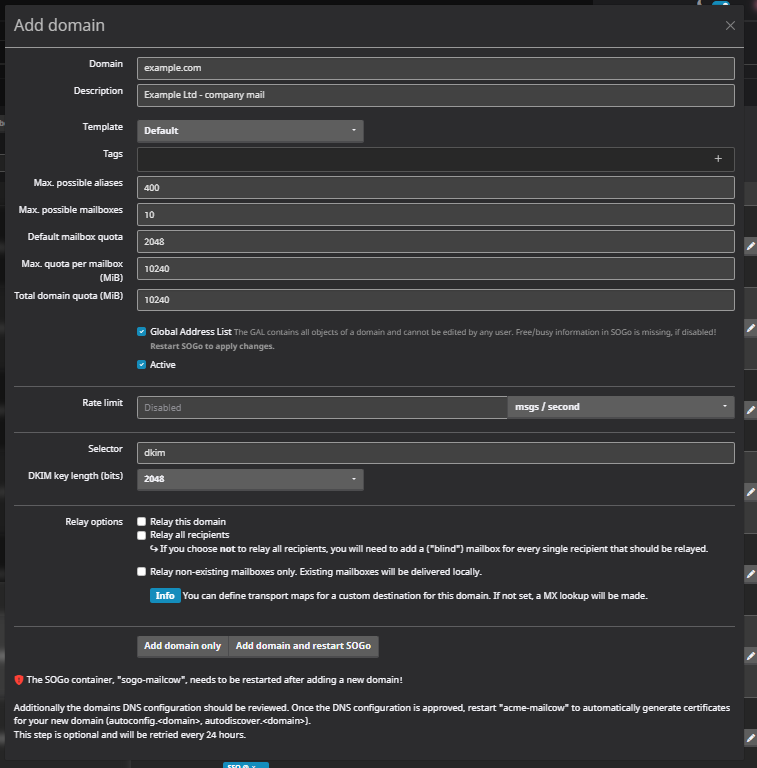
Adding the new domain. Set the default mailbox quota before creating anything — it decides how many mailboxes will fit.
Every field explained
| Field | What to enter | Why |
|---|---|---|
| Domain | example.com |
Bare domain. No www, no trailing dot, no @. |
| Description | Anything | Internal label only. Never leaves the server. |
| Template | Default |
Templates pre-fill the rest of this form. Leave alone until you are adding domains regularly. |
| Tags | Empty | Organisational labels for filtering the domain list. |
| Max. possible aliases | 400 |
A cap, not an allocation. Costs nothing to leave high. |
| Max. possible mailboxes | 10 |
Also a cap. Set it to roughly what you expect, so a mistake cannot fill the disk. |
| Default mailbox quota | 2048 |
The value pre-filled into each new mailbox. See the trap below. |
| Max. quota per mailbox (MiB) | 10240 |
The ceiling a single mailbox may be raised to. |
| Total domain quota (MiB) | 10240 |
The sum all mailboxes in this domain may allocate. |
| Global Address List | Checked | Makes mailboxes in this domain visible to each other in SOGo's address book. Fine for a company domain; uncheck it for a shared-hosting style setup where users should not see each other. |
| Active | Checked | Required. |
| Rate limit | Disabled | A per-domain send ceiling. Leave off until you know your normal volume; a wrong value silently defers real mail. |
| Selector | dkim |
The DKIM selector name. This becomes part of your DNS record name: dkim._domainkey.example.com. Changing it here means changing it in DNS. |
| DKIM key length | 2048 |
Correct default. 1024 is weak; 4096 produces a record some DNS panels refuse to store. |
| Relay this domain | Unchecked | For when mailcow should forward this domain's mail to a different server. You are hosting the mailboxes here, so leave it off. |
| Relay all recipients | Unchecked | Only relevant with relaying enabled. |
| Relay non-existing mailboxes only | Unchecked | Same. |
The quota trap
Three of those fields interact, and the interaction is not signposted anywhere in the UI:
Default mailbox quota × number of mailboxes ≤ Total domain quota
With mailcow's defaults — 3072 default quota against a 10240 total — you can create three mailboxes. The fourth fails with a quota error that reads like a bug. If you plan four addresses at 2 GiB each, set the default to 2048 before creating anything, or raise the total domain quota.
Add domain only, or Add domain and restart SOGo?
SOGo is the webmail component, and it only learns about a new domain when it restarts. Pick Add domain and restart SOGo unless the restart is inconvenient right now — it interrupts webmail for both your old and new domains for roughly 10–30 seconds.
Important: that restart affects webmail only. Postfix and Dovecot are untouched, so mail keeps flowing in and out the whole time. If you choose "Add domain only", you can restart sogo-mailcow later from System → Containers. Mailboxes and DNS work without it; only webmail login for the new domain is affected.
2. DNS: what to add, and why each record exists
This is the part that actually turns mail on. Until these records exist your mailboxes are real but completely inert — they cannot receive a message, and nothing they send will be accepted anywhere.
The mental model: mailcow is the building, DNS is the street address and the ID card. One record tells the world where to deliver. The other three prove that mail claiming to be from you really is.
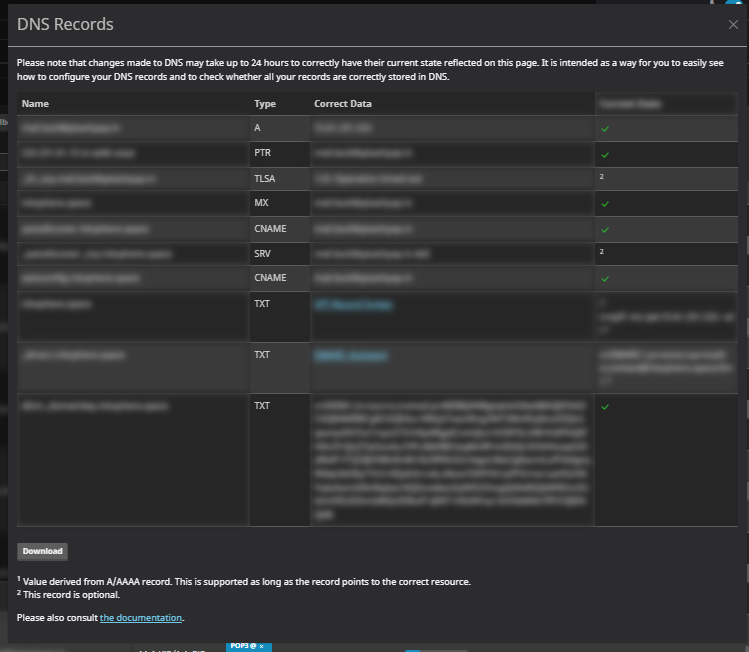
mailcow lists every record it expects and checks whether it is live. Green ticks mean the record was found in DNS.
mailcow generates the exact values for you. Open Domains → DNS on the new domain's row and keep it open while you edit your registrar's zone. It also colour-codes which records it can already see live, which makes verification trivial.
The records
| Type | Name | Value | Priority | TTL |
|---|---|---|---|---|
| MX | @ |
mail.example.com |
10 |
300 |
| TXT | @ |
v=spf1 mx ip4:203.0.113.10 ~all |
— | 300 |
| TXT | dkim._domainkey |
(copy from mailcow) | — | 300 |
| TXT | _dmarc |
v=DMARC1; p=none; rua=mailto:contact@example.com; fo=1 |
— | 300 |
| CNAME | autodiscover |
mail.example.com |
— | 300 |
| CNAME | autoconfig |
mail.example.com |
— | 300 |
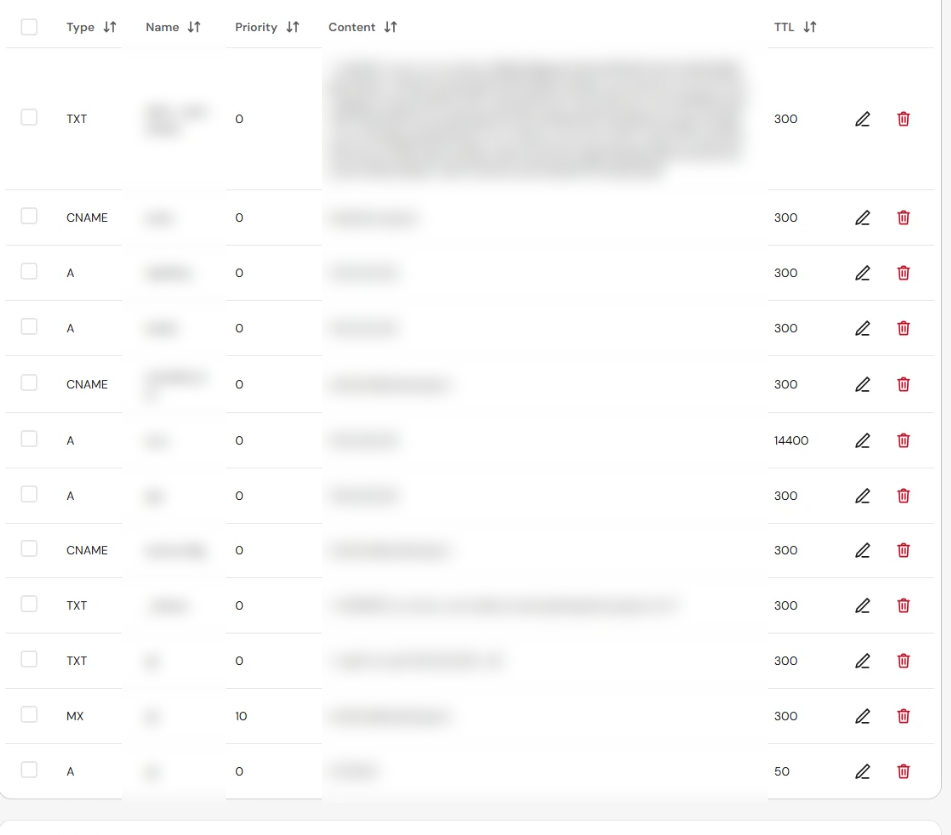
The finished zone at the registrar, with the mail records added alongside the existing ones.
Use TTL 300 while setting up. A typo at TTL 14400 costs you four hours of waiting. Raise it to 3600 once everything verifies.
MX — where mail is delivered
When someone sends to you@example.com, their server asks DNS for your MX record and delivers there. The value is a hostname, not an IP — MX records pointing at an IP address are invalid and get rejected.
The number (10) is priority: lower wins, and additional records with higher numbers act as backups. With one mail server the actual value is irrelevant; 10 is convention.
A common worry: if your mail server is named after a different domain — say mail.olddomain.com serving mail for example.com — that is completely normal. An MX record is a pointer, like an address written on an envelope; it changes nothing about the other domain. Your server's certificate and PTR already match its real hostname, so pointing at it is actually safer than inventing mail.example.com and having to reissue certificates.
SPF — which servers may send as you
SPF is a public list of IPs allowed to send mail using your domain. Receivers check the connecting server against it.
v=spf1 mx ip4:203.0.113.10 ~all
mx— authorise whatever your MX record points toip4:203.0.113.10— authorise that IP explicitly; belt and braces, and it survives MX changes~all— softfail: anything else is suspicious but should still be accepted
Use ~all while setting up. Switch to -all (hardfail, reject outright) once you are certain every system that sends as your domain is listed — your app server, your newsletter tool, your CRM.
The one rule that breaks people: a domain may have exactly one SPF record. Two TXT records both starting v=spf1 is a permanent error, and the result is worse than having none at all — every receiver fails your mail. When you add a service later, you edit the existing record. You never add a second.
DKIM — a cryptographic signature
mailcow holds a private key and signs every outgoing message with it. The matching public key goes in DNS. Receivers fetch it and verify the signature, which proves two things: the mail genuinely came from your server, and nobody altered it in transit.
The record name comes from the selector you set in the domain form. Selector dkim produces dkim._domainkey.example.com.
Why DKIM matters more than SPF: SPF breaks when mail is forwarded, because the forwarding server's IP is not on your list. A DKIM signature travels with the message and survives. For deliverability, DKIM does the heavy lifting.
Publishing the public key is safe — that is its entire purpose. The private key never leaves your server.
The value is long, around 400 characters. Paste it on one line, no quotes, no line breaks. Some registrars need values over 255 characters split into chunks; most modern panels do this silently. After publishing, verify it matches the source exactly — a truncated DKIM key fails in a way that produces no useful error anywhere.
DMARC — the policy that ties it together
SPF and DKIM validate technical identifiers the recipient never sees. DMARC connects them to the visible From: address and tells receivers what to do when that check fails.
v=DMARC1; p=none; rua=mailto:contact@example.com; fo=1
p=none— monitor only, do not change handlingrua=— where to send aggregate reportsfo=1— report any failure, not only total failures
Start at p=none and mean it. DMARC reports will show you systems sending as your domain that you had forgotten about. Move to p=quarantine after a few weeks of clean reports, and to p=reject only once you are confident. Jumping straight to p=reject is how people silently lose invoices.
Keep the rua= address on the same domain. Sending reports to an address at a different domain requires an extra authorisation record on the receiving domain, and most senders quietly drop the reports when it is missing.
autodiscover / autoconfig — client convenience
These let Outlook (autodiscover) and Thunderbird (autoconfig) configure an account from just an email address and password, instead of the user typing server names and ports. Optional; nothing breaks without them.
If your DNS sits behind a proxy such as Cloudflare, these two must be DNS-only (grey cloud), or certificate issuance for them will never succeed.
Reverse DNS — already done, but worth understanding
Your server's IP must resolve backwards to its hostname (203.0.113.10 → mail.example.com), and that hostname must resolve forwards to the same IP. This is set at your hosting provider, not your registrar.
You did this when you set up mailcow's first domain, and it applies to every domain the server sends for. It is worth knowing because it is the single most common reason an otherwise perfect setup still lands in spam — many receivers reject mail from IPs with no matching PTR outright.
Verifying
From a terminal:
nslookup -type=MX example.com
nslookup -type=TXT example.com
nslookup -type=TXT _dmarc.example.com
nslookup -type=TXT dkim._domainkey.example.com
Or in PowerShell, which is easier to read:
Resolve-DnsName example.com -Type MX -Server 1.1.1.1
Resolve-DnsName example.com -Type TXT -Server 1.1.1.1
Resolve-DnsName _dmarc.example.com -Type TXT -Server 1.1.1.1
Querying 1.1.1.1 directly skips your local cache. Then go back to mailcow's DNS page — "Current State" should now match "Correct Data" on every row.
3. Create a mailbox
E-Mail → Configuration → Mailboxes → Add mailbox.
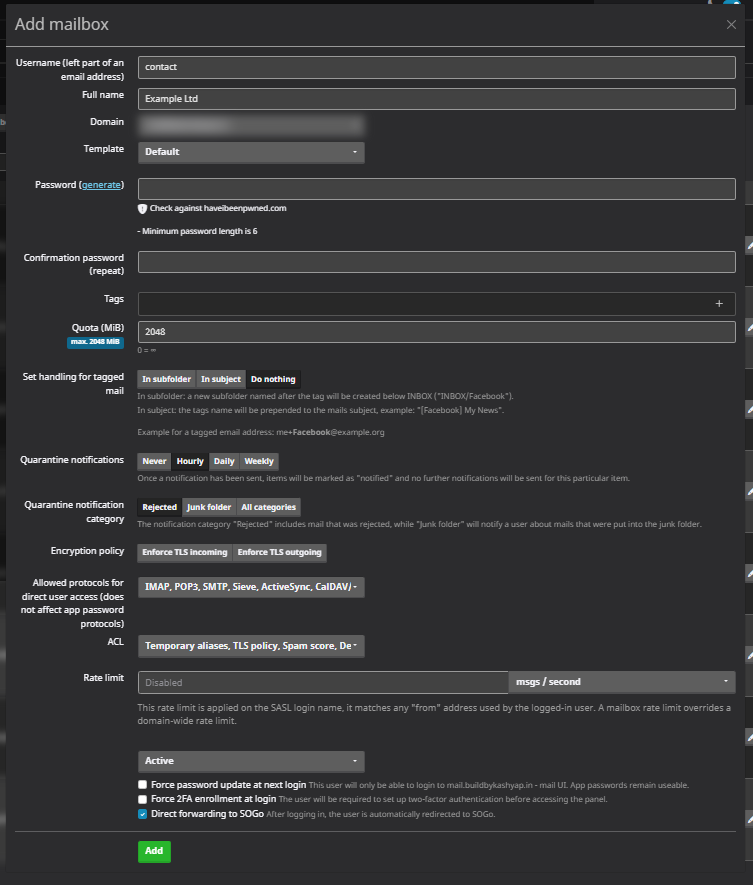
Creating a mailbox. The three checkboxes at the bottom are the ones that cause confusing login failures.
| Field | Notes |
|---|---|
| Username | The part before the @ only — contact, not contact@example.com. |
| Full name | The display name recipients see in their inbox. Get this right; see below. |
| Domain | Select the new domain. Easy to leave on the previous one by accident. |
| Password / Confirmation | Hashed on submit and unreadable afterwards. Save it somewhere before you click Add. |
| Quota (MiB) | Pre-filled from the domain default. 0 means unlimited, bounded by the domain total. |
| Set handling for tagged mail | Behaviour for plus-addressing (you+shop@example.com). "In subfolder" files them automatically; "Do nothing" is fine. |
| Quarantine notifications | How often you are told about blocked mail. Daily on a new address; Hourly gets noisy fast. |
| Encryption policy | Leave both toggles off. "Enforce TLS incoming" rejects senders whose servers cannot do TLS, which silently loses legitimate mail from older systems. |
| Allowed protocols | Which protocols this account may use. Defaults are fine for a human mailbox. |
| Rate limit | Per-mailbox send ceiling; overrides the domain limit. |
| Force password update at next login | Leave unchecked. With it on, IMAP and SMTP logins are refused until someone logs into webmail and changes the password — producing an "auth failed" that looks exactly like a broken mailbox. |
| Force 2FA enrollment at login | Leave unchecked initially, for the same reason. |
| Direct forwarding to SOGo | Redirects to webmail immediately after login. If you have not restarted SOGo since adding the domain, this lands on an error page. Uncheck it until SOGo has been restarted. |
On display names: this is what recipients actually see. A mailbox named companyname in lowercase sending your password resets looks careless, and the sender name is the first thing someone reads when deciding whether a message is genuine. Use the product name for application mail and a real human name for a personal address.
Send-only accounts deserve hardening
If an address exists purely so an application can send through it — a noreply@ — treat it differently:
- Cut the quota right down. It stores nothing; it only needs room to collect bounces, which are genuinely worth reading.
- Under Allowed protocols, keep SMTP only and uncheck IMAP, POP3, ActiveSync, CalDAV and SSO.
That second point is real security, not tidiness. This credential will live in a config file or a secrets vault and be injected into a container. If it leaks, SMTP-only means an attacker can send as you — bad — but cannot read your mail or reach the admin panel.
4. Aliases
An alias is an address with no mailbox behind it. No storage, no password, no quota. It simply forwards to one or more real mailboxes.
Use an alias when:
- You want to catch an address people guess (
info@,help@,hello@) without another inbox to check - Several people should receive the same address — an alias with multiple destinations is a small distribution list
- You want a product-specific address routed into a shared queue
Use a mailbox when the address needs its own password, its own storage, or its own login.
Aliases are also far cheaper. mailcow's defaults allow 400 per domain against 10 mailboxes, and they consume no disk quota at all.
E-Mail → Configuration → Aliases → Add alias.
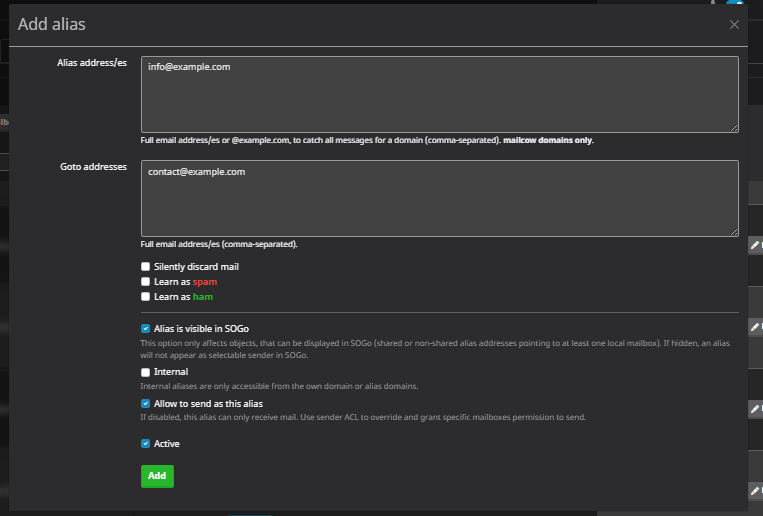
An alias forwarding one address to a real mailbox. No password, no storage, no quota.
Every field explained
Alias address/es The address being created. Full addresses, comma-separated for several at once, and only on domains mailcow already hosts.
You can also enter @example.com to create a catch-all that accepts every possible address at the domain. Resist this. A catch-all accepts mail for addresses that do not exist, which means every dictionary attack against your domain lands in a real inbox. A handful of specific aliases covers what people actually guess, without the flood.
Goto addresses Where the mail is delivered. Full addresses, comma-separated. List several and every one receives a copy — that is how you build a simple team address. Destinations can be external; an alias can forward to a Gmail address perfectly well.
Silently discard mail Accepts the message and deletes it. No bounce, no delivery. Useful for retiring an address that still receives automated mail you do not want, without telling senders it is gone. Rarely what you want otherwise — silently destroying mail hides problems.
Learn as spam / Learn as ham These turn the alias into a training address for Rspamd rather than a forwarder. Mail sent to it teaches the filter and is not delivered. The classic use is a pair of internal addresses where staff forward missed spam and false positives. Leave both off for a normal alias.
Alias is visible in SOGo
Controls whether the alias appears in webmail as a selectable "send as" sender. Turn it on if someone should be able to reply from info@example.com inside webmail. It only applies to aliases pointing at a local mailbox.
Internal
Restricts the alias to senders within your own domain or its alias domains; mail from the outside world is rejected. Good for internal distribution addresses such as all-staff@, wrong for anything customer-facing.
Allow to send as this alias If disabled, the alias can only receive. If enabled, the destination mailbox may also send using the alias as its From address. Enable it for an address you will reply from; leave it off for one that only collects mail. A sender ACL on individual mailboxes achieves the same thing more selectively.
Active The on/off switch. Leaving it unchecked creates the alias in a disabled state, which is useful for preparing an address before a launch.
5. Test it before you trust it
DNS being correct and mail actually arriving are different claims. Check both.
Is the mail server answering?
Test-NetConnection mail.example.com -Port 25
A successful connection returns a banner beginning 220. Many home ISPs block outbound port 25, so a failure here may be your connection rather than your server.
What does a real receiver think? Send a message from the new address to the throwaway address mail-tester.com generates, then check the score. It grades SPF, DKIM, DMARC, reverse DNS and blocklist status from the outside, and explains each deduction. Anything below 8/10 needs attention before you send real mail.
Does it reach an inbox? Send to a Gmail address and confirm it lands in Inbox rather than Spam. Gmail's "Show original" displays SPF: PASS, DKIM: PASS and DMARC: PASS explicitly.
A brand-new IP has no sending reputation, and many cloud provider ranges are treated with suspicion by default. If the mail will carry something critical — sign-up codes, password resets, invoices — consider routing that traffic through a transactional relay and keeping your own server for human mailboxes. It is a configuration change, not a rewrite.
6. Finishing up
- Restart
acme-mailcow(System → Containers) onceautodiscoverandautoconfigare live, so certificates are issued for them. - Restart
sogo-mailcowif you skipped it earlier and want webmail on the new domain. - Raise TTLs from 300 back to 3600 now that the records are proven.
- Tighten gradually: SPF
~all→-all, and DMARCp=none→p=quarantine→p=reject, each after a period of clean reports.
Mistakes worth avoiding
- Two SPF records on one domain — a permanent failure, worse than having none
- A truncated DKIM value, which fails without a useful error anywhere
- Default quotas that make the fourth mailbox fail for no visible reason
- "Force password update at next login" on an account an application authenticates as
- "Enforce TLS incoming", which silently rejects legitimate senders
- A catch-all alias, which turns every dictionary attack into inbox noise
- DMARC at
p=rejecton day one, before you know who sends as your domain - Your registrar's "Reset DNS records" button, which wipes the zone you just built
Work through it in that order — domain, DNS, mailboxes, aliases, verify — and a new domain takes about twenty minutes. The DNS section is the part worth genuinely understanding rather than copying: MX decides whether mail arrives, and SPF, DKIM and DMARC together decide whether anyone believes it came from you.
More from the blog
More on the same themes as this post.

I Hosted My Own Email Server With Mailcow (And Learned Why It's Harder Than It Looks)
Blob Storage 101: Cost, Cloud vs Self-Hosting, and Why I Moved from MinIO to RustFS